Projects
My Projects
In this subsection the projects available will be displayed. There is a button on the top right to create a new project and a search bar.
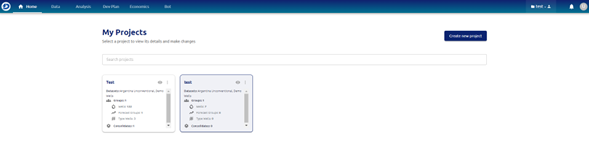
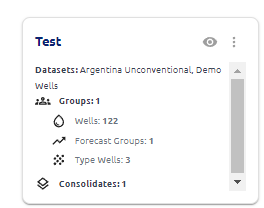
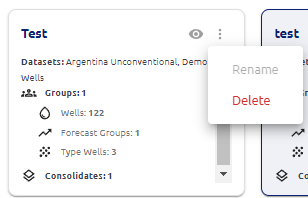
Each project will be displayed in a tile shape, which includes the details of the datasets utilized, number of well groups, forecasts, consolidates, dev plans and ecomnomics contained in them.
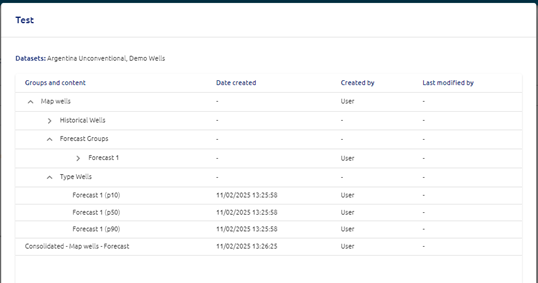
When the user clicks on the eye button the window containing the details of the project created will be displayed.
When the user clicks on the three dots, it opens up the menu to rename or delete the project selected.
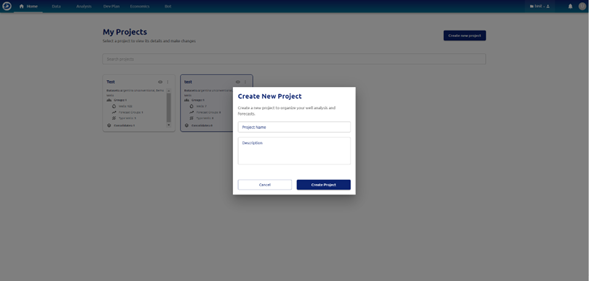
Create new project
In this module the user can create a project, name it and type any description. After clicking on “Create Project”, the new project will show up on the tile section.
Save Projects
Any time a user makes a change inside a projecton the top right ribbon a notification will appear and a banner with a button too. There will be a button to save all, and a button to view the unsaved changes and select which modifications the user wants to save into the project.
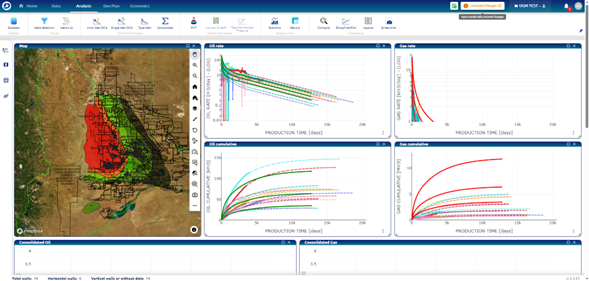
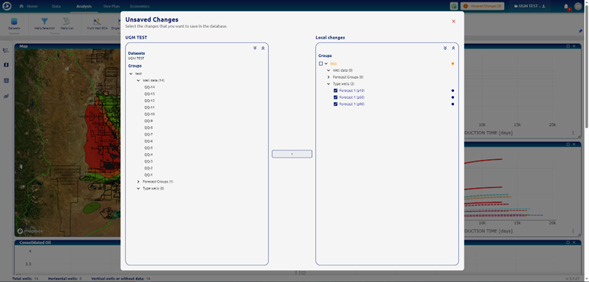
When the user clicks the yellow button, the following window will open. In this panel the user will be able to see on the left which data is stored and on the right the locally stored data. By clicking on the checkboxes, the user can select which items to save onto the project. After selecting them the user must click on the arrow in the middle of the two panels. Each item on the local changes panel will have a dot that indicates the status of the element. Orange will mean “modified element”, blue “new element”, green “saved element”.
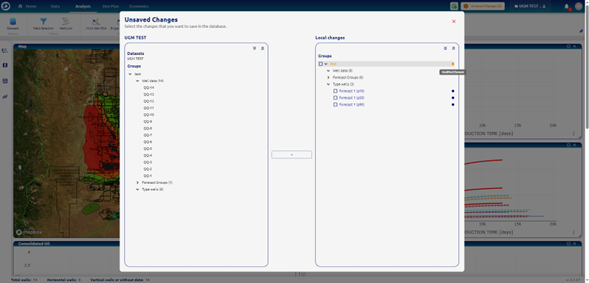
Selecting items to save into the project: